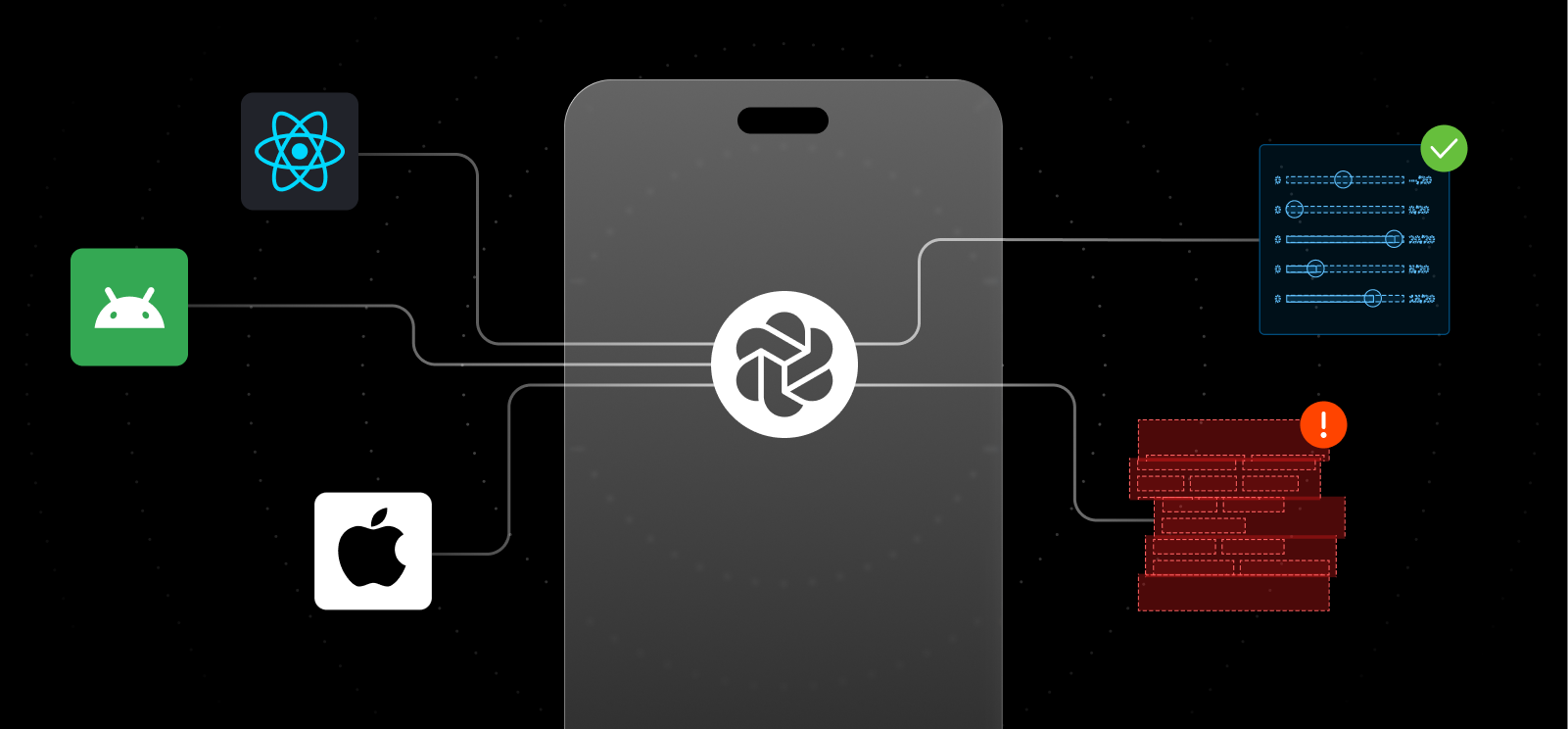
Chromatic for React Native
Turn React Native Storybook stories into visual tests. Chromatic runs every test in parallel, on cloud-based iOS simulators and Android emulators.

Visual testing native apps has always been a pain. Self-hosted tools can take snapshots, but reviewing them means digging through CI artifacts, with no way to approve or reject individual changes.
You end up stitching together a bunch of tools just to get a basic workflow. Plus you’re on the hook for babysitting simulators in CI to keep tests stable.
Chromatic for React Native gives you a complete visual testing workflow for native apps. It’s now available to everyone.
- 📱 Managed infrastructure: cloud-based iOS simulators and Android emulators
- 📙 Stories as tests: powered by React Native Storybook
- 🏎️ Fast: tests run in parallel by default
- 📷 Zero flake: built-in stabilization waits for the UI to settle before capturing
- 🔍 Team review: approve/reject changes in the Chromatic web app, with PR checks
Why visual test React Native components?
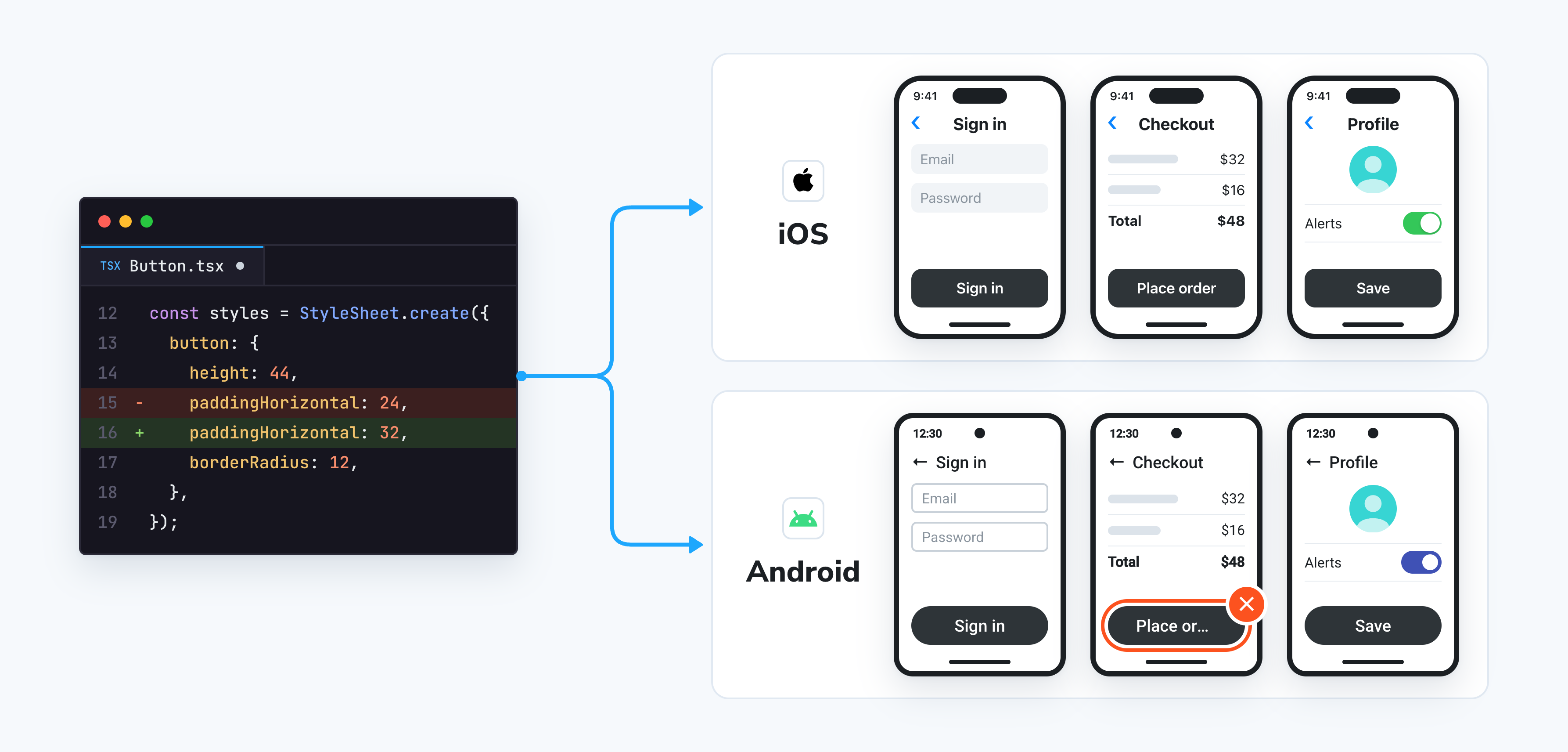
Native apps are plagued by the same issues as web apps. Modify one component and the change can ripple through multiple screens. On top of that, you’re working across two distinct platforms. Fonts, styling, and UI controls are all platform-specific, so if you spot-check just one, you can miss a bug on the other. Visual tests guard against such bugs.
DIY visual testing just doesn’t cut it
Open source tools like Detox and React Native Owl can capture and diff snapshots. But the workflow around them is disjointed and hard to scale.
You have to jump between tools
When a test fails in CI, you have to download the report and review it locally. Then trigger another run just to update the baselines. And you can’t approve or reject individual tests, it’s all or nothing.
It’s also really hard to track baseline changes because snapshots are stored as PNGs in your git repo. You have to dig through git history to figure out when a screen changed and who approved it.
Your team slows down
Native builds are already slow, often tens of minutes just to package the app, so every minute added to your CI run hurts. With these tools, snapshots are captured one at a time on a single machine. The only way to speed up is to shard across multiple machines, which is both expensive and hard to maintain because you’re supporting two platforms with different OS and toolchain requirements.
Chromatic manages the infrastructure and streamlines review
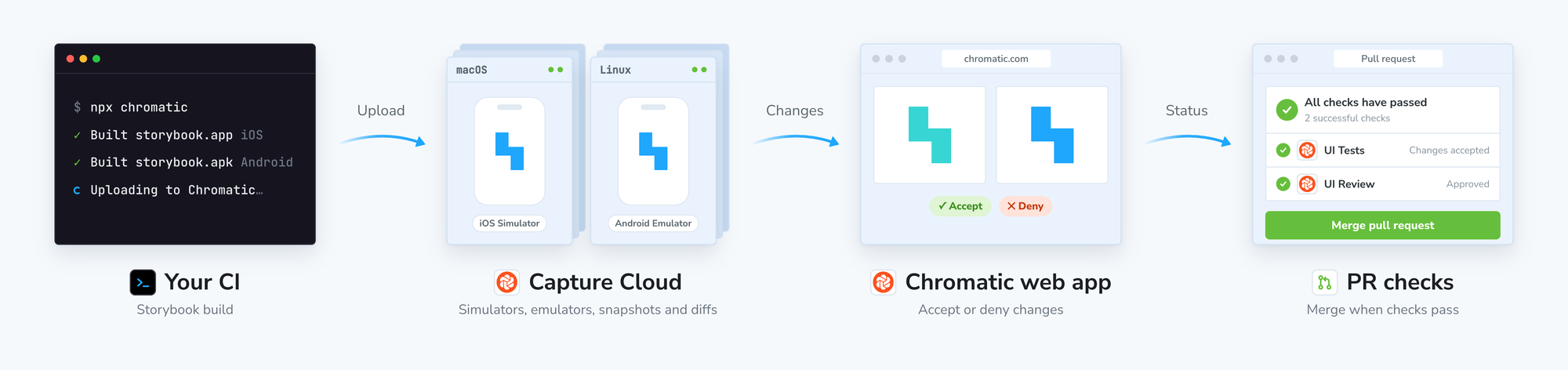
Chromatic turns your React Native Storybook stories into visual tests. Each story captures a state of a component, and Chromatic snapshots it on iOS simulators and Android emulators, so you test exactly what your users see.
Every test runs in parallel, with Chromatic spinning up as many machines as needed. You don’t have to worry about sharding or maintaining CI runners.
Your team reviews changes in the browser and can approve or reject individual tests. Results are reported back to your PR, and baselines are tracked per branch with full history, so every change has a clear record.
How it works
Chromatic supports React Native Storybook 9.0 or later, and you’ll need to be on the latest version of the Chromatic CLI.
Projects bootstrapped with React Native Storybook 10.4 or later need no extra configuration and can skip to step 3. For earlier versions, you’ll have to make two changes:
1. Render Storybook at your app’s root
Modify your app root to render the Storybook UI when Chromatic sets the environment flag (STORYBOOK_ENABLED or EXPO_PUBLIC_STORYBOOK_ENABLED).
Here’s an Expo Router example in app/_layout.tsx:
import { Stack } from 'expo-router';
import StorybookUI from '../.rnstorybook';

export default function RootLayout() {
  if (process.env.EXPO_PUBLIC_STORYBOOK_ENABLED === 'true') {
    return <StorybookUI />;
  }

  // else render the normal app
  return (
    <Stack screenOptions={{ headerShown: false }}>
      <Stack.Screen name="(pages)/index" />
    </Stack>
  );
}
2. Configure Storybook UI using environment variables
During capture, Chromatic drives Storybook over WebSockets. Update your .rnstorybook/index.ts file to add the connection settings:
import { view } from './storybook.requires';

const StorybookUIRoot = view.getStorybookUI({
  enableWebsockets: process.env.EXPO_PUBLIC_STORYBOOK_ENABLED === 'true',
  host: process.env.EXPO_PUBLIC_STORYBOOK_WEBSOCKET_HOST || 'localhost',
  port: parseInt(process.env.EXPO_PUBLIC_STORYBOOK_WEBSOCKET_PORT || '7007', 10),
  secured: process.env.EXPO_PUBLIC_STORYBOOK_WEBSOCKET_SECURED === 'true',
  onDeviceUI: process.env.EXPO_PUBLIC_STORYBOOK_DISABLE_UI !== 'true',
});

export default StorybookUIRoot;
3. Run a build
With just a single command, Chromatic builds your iOS .app and Android .apk, snapshots every story in a stable cloud environment, and checks for diffs.
Trigger tests locally with the CLI (npx chromatic@latest --project-token <your-project-token>).
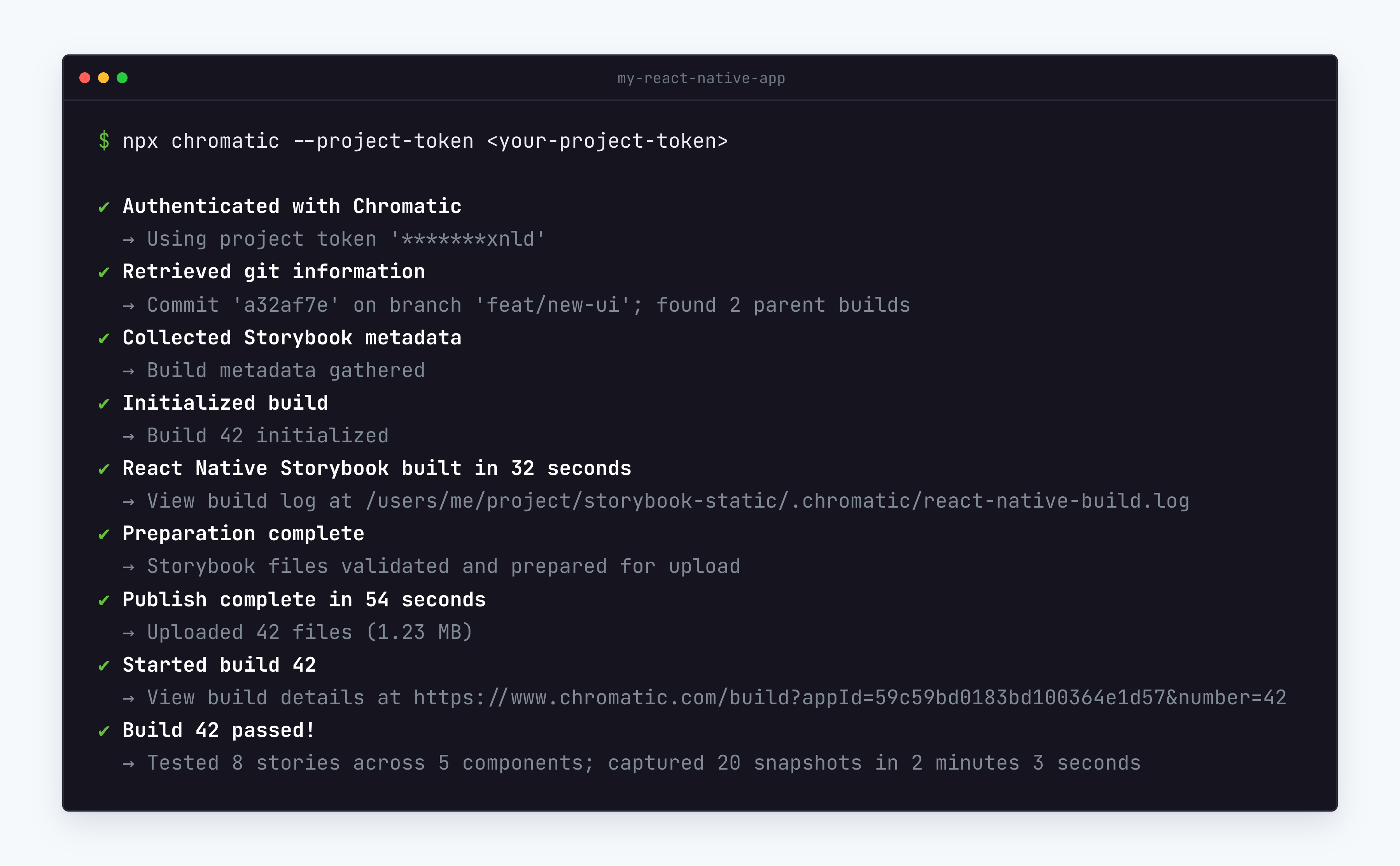
Or run Chromatic in your CI. For example, with GitHub Actions:
name: "Chromatic"

on: push

jobs:
  chromatic:
    name: Run Chromatic
    runs-on: macos-latest
    steps:
      - name: Checkout code
        uses: actions/checkout@v7
        with:
          fetch-depth: 0
      - uses: actions/setup-node@v7
        with:
          node-version: 24.20.0
      - name: Install dependencies
        run: npm ci
      - name: Run Chromatic
        uses: chromaui/action@latest
        with:
          projectToken: ${{ secrets.CHROMATIC_PROJECT_TOKEN }}
4. Review changes in the Chromatic web app
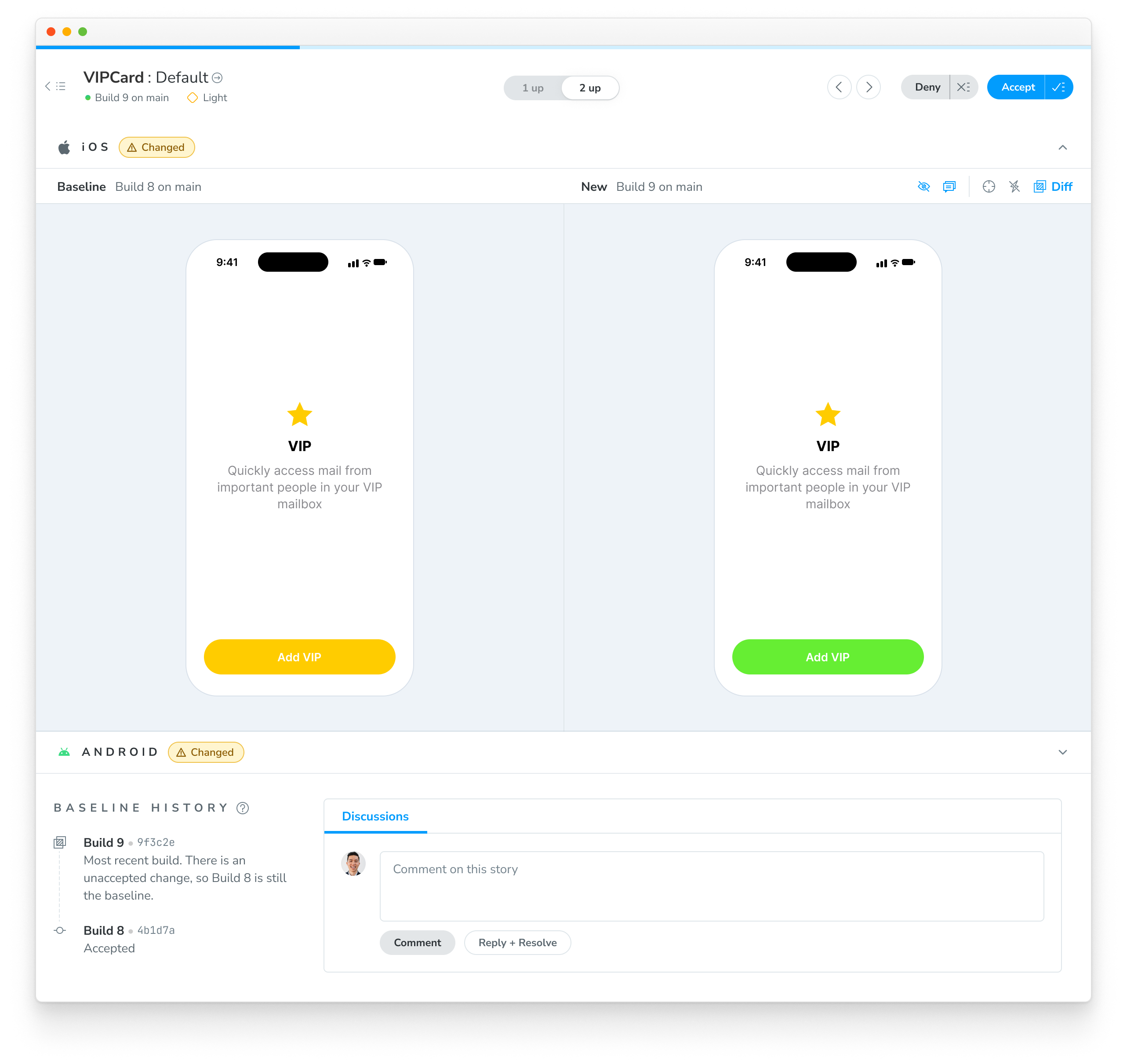
Every build lands in the Chromatic web app with both iOS and Android snapshots for each story. The Diff Inspector makes it easy to spot changes and even spotlights tiny diffs that are just a few pixels wide.
From there, you can approve or reject tests individually or in batches. Designers and PMs can leave comments on snapshots, and every build reports back to your PR as a status check.
Fits in your native build pipeline
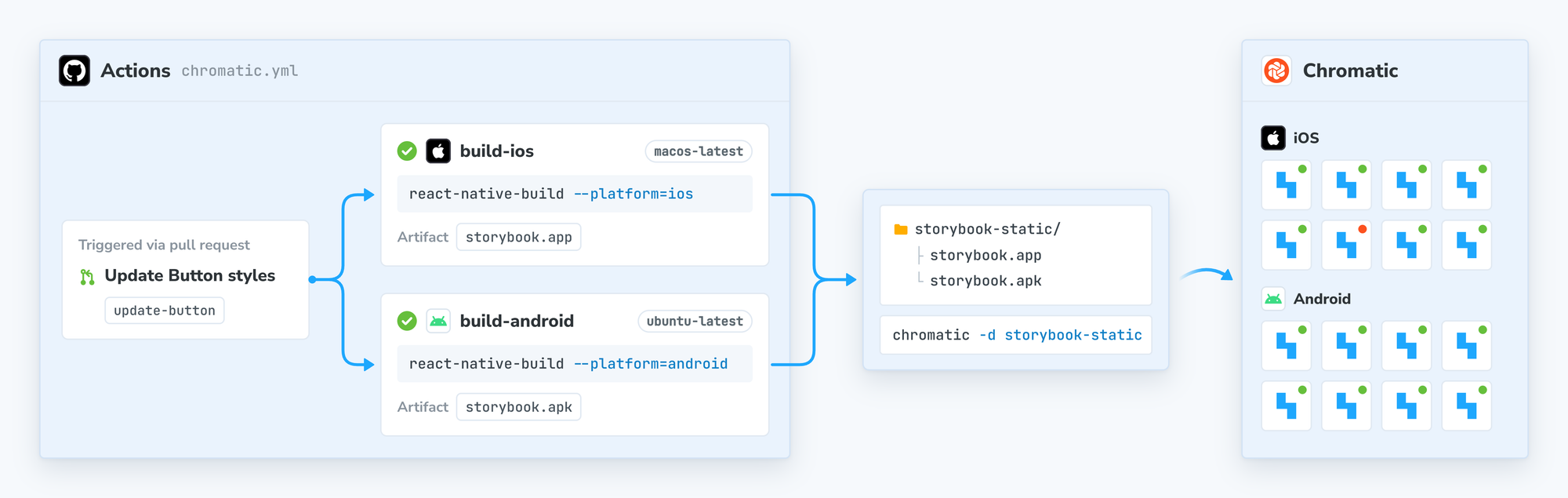
Chromatic works with whatever build setup you have for native apps. Point it at your own scripts with custom build commands in chromatic.config.json. Or skip the build step entirely and reuse your existing artifacts by passing prebuilt .app and .apk files with the --storybook-build-dir flag.
We also offer a react-native-build utility that saves CI time by parallelizing iOS and Android builds. And if you’re an Expo user, Chromatic integrates with EAS Build.
Snapshots you can trust
Visual tests are only useful if the results are consistent. With self-hosted tools, you’re responsible for the infrastructure, and small inconsistencies lead to flake: SDK or simulator drift, overloaded CI runners dropping frames, and static assets that are slow to load.
Chromatic manages the simulators and emulators for you and migrates your baselines whenever it upgrades them. It also uses SteadySnap to wait for the UI to settle before capturing, so every snapshot is stable.
New to Chromatic? Sign up for free and give React Native a go in minutes. Already a customer? Add React Native to your project with the setup guide.
FAQ
How are React Native snapshots billed?
Each story counts as one snapshot per platform. With both iOS and Android enabled, each story is billed two snapshots.
Can I run only iOS or only Android?
Yes. Toggle the platforms you want to capture on the project’s Configure screen in the Chromatic app.Which iOS and Android OS versions does Chromatic use?
Which iOS and Android OS versions does Chromatic use?
iOS: 26.1 and Android: 36. You can also view infrastructure details from the project’s Configure screen in the Chromatic app.